Solutions we build
Apex Consulting Group is a professional services firm built on 10+ years in the Smartsheet ecosystem. We build, train, transform, and support — the day-to-day work government and enterprise teams run on. Start with a free assessment.
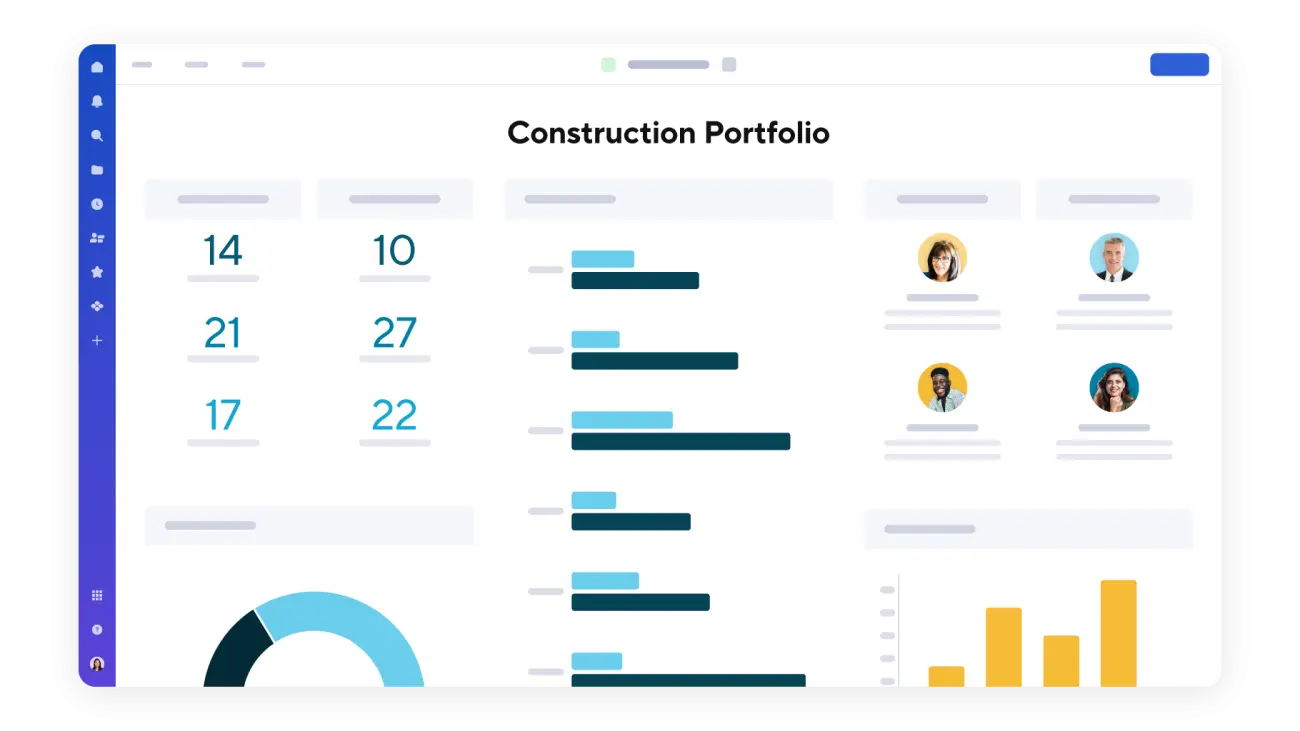
From state agencies to construction portfolios to higher-ed program offices — we deliver Smartsheet where it has to perform under real conditions.
Build, train, transform, or ongoing support. Four models below — pick the one that matches, or start with a free assessment and we'll tell you honestly where you fit.
Custom, ground-up solutions leveraging premium apps and AI. Bridge automations, Control Center blueprints, Dynamic View architectures, Data Shuttle integrations — scoped under an SOW and delivered all through Apex.
Role-based training for admins, builders, and end users — on your environment, not generic demos. For teams adopting Smartsheet or leveling up what they already have.
We take you from how you work today to how you should work tomorrow. Process redesign, AI strategy, change management, governance, adoption — the organizational side of transformation, delivered as scoped initiatives with defined outcomes.
For existing clients and environments. Break/fix, solution updates, training refreshers, on-call support — delivered all through Apex. New builds go through an SOW; this keeps what you have running and getting better.
Independent research from Forrester Consulting found that enterprises deploying Smartsheet returned their investment in under six months — and kept compounding the gains.
Smartsheet is the platform we know cold. That focus lets us go deeper — into Bridge automations, Control Center provisioning, AI and MCP integrations, and the messy edge cases generalist consultants avoid.
Not a generic PMO consultancy. We do one platform and we go deep on it — Bridge, Control Center, Dynamic View, Data Shuttle, the whole stack.
Founded by a former Smartsheet employee. We know the product roadmap, the support escalation paths, and the playbooks the platform team uses internally.
The consultants who design and build your solution are the ones who train your team and stay close after launch. No handoffs. No re-explaining.

I've spent 10+ years in the Smartsheet ecosystem — including time inside Smartsheet itself — before founding Apex Consulting Group. I've sat on every side of this table: the platform, the partner, and the customer just trying to get work done.
Apex exists because most Smartsheet implementations fail the same way. Not at launch — eighteen months later, when the builder has moved on and nobody owns what happens next. We stay for that part.
Not sure Smartsheet is even the right fit? Good place to start. We'll ask questions first and give you a straight answer — including "you don't need us."
Pick a time that works. We'll come prepared with questions about your workflows and walk away with a clear next step.
Quick question, project scoping, or RFI? Drop us a line — submissions land directly in our Smartsheet, no black hole.